Quick setup: Install IPTV Pro on a compatible Mac. Open Add Playlist, select M3U Playlist or Xtream Codes, fill in your source details, and click Connect. Once connected, start with TV Live in the sidebar.
1. Choose a player that works on your Mac
IPTV Pro includes a dedicated macOS app and requires macOS 15.6 or later. Open its App Store listing on your Mac and check compatibility before installing. Older search terms such as “IPTV player Mac OS X” do not mean a current app will work on an older system.
Some IPTV players offer an iPad app that is also available on compatible Apple-silicon Macs. A native Mac app instead has its own desktop interface; IPTV Pro uses a library sidebar and separate playback windows. Both approaches can be useful. Choose based on your Mac, source format, and how you want to watch, rather than the word “native” alone.
You need your own legally obtained content source. IPTV Pro does not supply a channel package, playlist, or provider account. Its app access options are separate from any content subscription. If onboarding presents a purchase or access screen, review those terms before continuing.
2. Open the playlist form
On first launch, follow onboarding to the playlist setup screen. If an existing IPTV Pro playlist is recovered, you can reconnect to it instead of entering everything again. To add a source later, select Settings in the sidebar and use Add Playlist in the Playlists section.
Before entering anything, identify your source. A complete M3U link belongs in M3U mode. A server address plus username and password belongs in Xtream mode. A provider’s billing website, device activation code, or playlist backup file is not a substitute for either.
3. Add a remote M3U playlist
- Choose M3U Playlist in the Account Type selector.
- Enter a recognizable Playlist Name if that field is shown. Some first-setup flows omit it.
- Paste your full playlist URL into Host. Despite the server-style placeholder, M3U mode needs the entire link, including its path and query parameters.
- Click Connect and wait for the import to finish.
- Open TV Live or Movies to explore the entries your source provides.
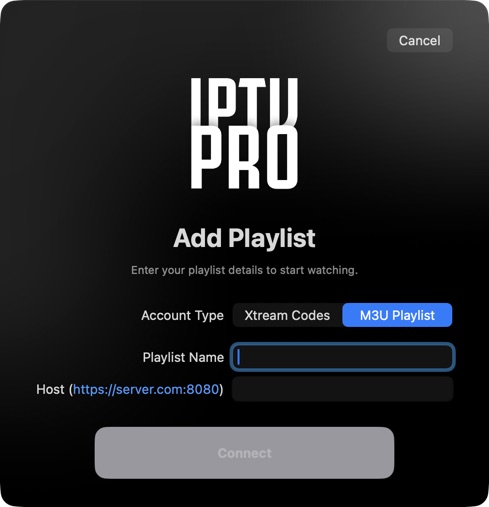
Do not drop a local .m3u file into this form. IPTV Pro accepts remote playlist URLs, not Finder file uploads. If you only have a local file, request a supported link from the source provider or use a player that explicitly supports local playlists.
M3U entries can populate live channels and compatible movies. IPTV Pro’s M3U import does not create a structured series catalog or import a separate XMLTV schedule. If those are central to your setup, check whether the provider offers Xtream access.
4. Add an Xtream Codes account
- Choose Xtream Codes in Add Playlist.
- Fill in Playlist Name if shown.
- Enter the source’s server address in Host, keeping the protocol and port supplied by the provider.
- Paste the provider’s Username and Password into the corresponding fields. Use the source credentials, not your Apple Account password.
- Click Connect. Once the catalog loads, use the sidebar to open its live, movie, or series sections.
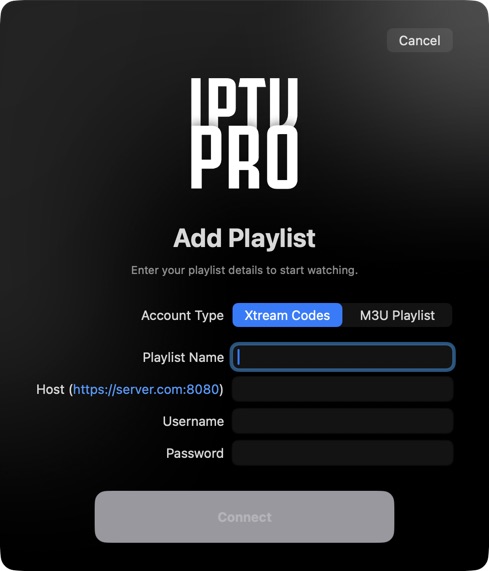
The selected protocol matters: changing http:// to https://, or dropping the port, can point to a different or unavailable service. Follow the source provider’s connection instructions. For more on the supported input, see our Xtream Codes overview.
5. Use the Mac sidebar, guide, and player windows
The sidebar separates TV Live, Movies, Series, Favorites, and Search. Select a live category to see its channel list and preview area. A source can have an empty movie or series catalog even when live channels work normally.
Inside a live category, the toolbar’s TV Guide button opens the EPG grid. You can hover over its icon to see the label. Schedule entries come from compatible Xtream providers; an empty schedule is not proof that playback itself is broken.
Movies and episodes open in their own playback windows. Live viewing also offers a standalone player, so you can watch outside the library’s preview pane. Use the player window’s controls for fullscreen viewing rather than expecting the library window itself to become the video.
If you already watch on an iPhone or iPad, IPTV Pro supports continuity for playlists, favorites, and viewing history across its Apple apps. Recovered playlists may still need to reconnect to the provider. Local video downloads are separate and are not copied to your Mac by library sync.
6. Download supported movies or episodes
Use the download control on a supported movie or Xtream episode. The Downloads sidebar item appears when the download manager has entries, so it may be absent before your first download.
Wait until the transfer is complete and test playback from Downloads before relying on it offline. The source must permit the transfer, and the Mac needs enough storage. A movie download does not record a live channel or make every item in a playlist available without an internet connection.
Troubleshoot import and playback separately
Connect is disabled or the source will not import
Check the account type, URL, and required credentials. In M3U mode, restore the full link if you pasted only the domain. In Xtream mode, recheck the host, port, username, and password. Ask the provider whether the account is active if the same details fail in another player.
The app connects, but a section is empty
Check the selected category and filters, then confirm what the provider includes. A simple M3U source will not populate IPTV Pro’s structured Series catalog. For an empty guide, check the source type and whether the provider supplies schedules for those channels.
A stream opens but buffers or fails
Test another channel or movie. Stop playback on other devices if your provider limits simultaneous streams. Compare another network when possible. If one title fails while the rest work, the issue may be specific to that stream or its format; if everything fails, investigate the network or provider account before rebuilding your library.
When contacting IPTV Pro support, include your Mac model, macOS version, app version, and whether the failure happened during import or playback. Keep source URLs, passwords, and screenshots of filled forms out of the message.
Frequently asked questions
Can I watch IPTV on a MacBook?
Yes. Use a Mac-compatible player with your own legally obtained source. IPTV Pro has a native Mac app requiring macOS 15.6 or later and accepts remote M3U URLs and Xtream Codes credentials. Check the App Store compatibility section on your Mac before installing.
Can IPTV Pro import a local M3U file on Mac?
No. Its import form accepts a remote M3U URL rather than a local file upload. Request a supported URL from your source provider, or choose a player that explicitly supports opening local playlist files.
Does IPTV Pro have an EPG grid on Mac?
Yes. Open a live category and use the toolbar's TV Guide button. Schedule data comes from compatible Xtream sources; separate XMLTV guide imports for M3U playlists are not supported.
Why is Downloads missing from the Mac sidebar?
The Downloads sidebar item appears when the download manager has entries. Start a supported movie or episode download, then check its progress. Only completed downloads are ready for offline viewing.
Will an iPad download appear on my Mac?
Downloaded video files stay on the device where you downloaded them. Library continuity does not copy those files between devices. Download a supported title on your Mac separately if you want to watch it there offline.